
QuickBooks for Contractors: Use Projects and Forge to Fix Job Costing
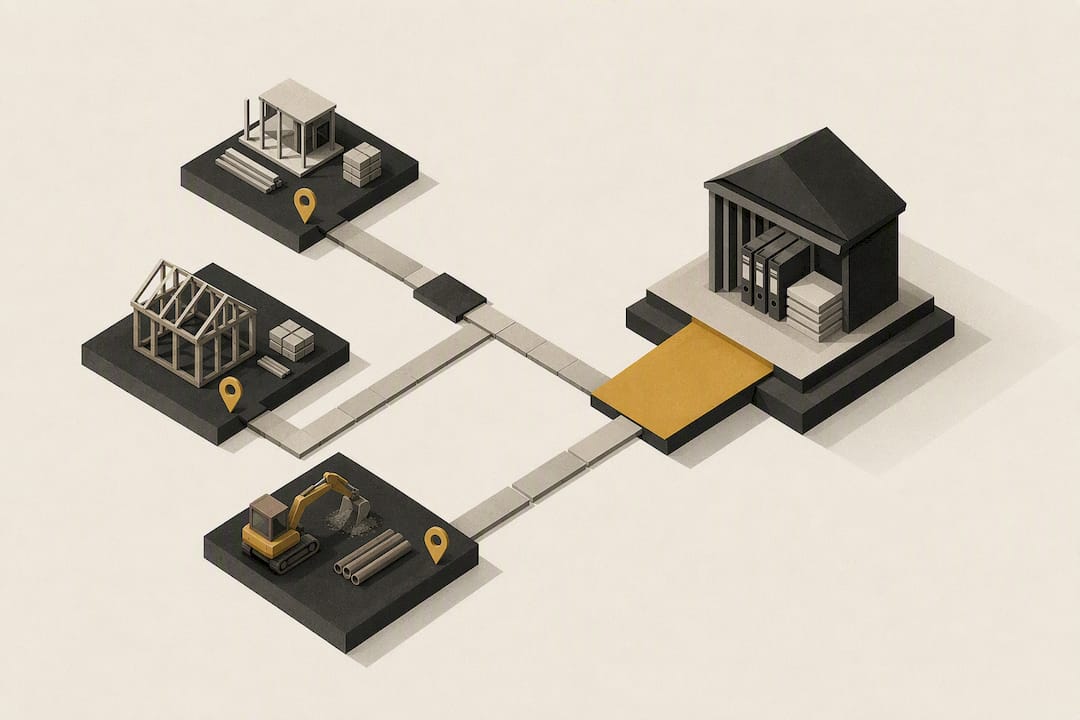
QuickBooks Online Plus is the floor, not the finish line, for contractors who want real job-level profit numbers. The one setup step you cannot skip is turning on Projects, two-sided items, and class or location tracking before you enter a single transaction. Budget realistically: plan, time tracking, and payroll together typically cost a moderate monthly amount for a small crew.
TL;DR:
- Contractors should ensure they select the right QuickBooks edition, with small to mid-size crews fitting best on QuickBooks Online Plus for job-level profit tracking.
- Enabling key features such as Projects, class or location tracking, and two-sided items is critical to accurate job costing and should be actively managed and audited monthly.
- Setting up the chart of accounts into direct, indirect, and administrative costs and creating one project per job are crucial steps in the proper implementation process.
- Moving beyond QuickBooks Online Plus is typically prompted by complexity needs like retainage, certified payroll, or multi-entity consolidation, often requiring additional add-ons or specialized versions.
- Using a trades operations tool like Forge alongside QuickBooks can streamline workflows, prevent data scattering, and improve overall job profitability accuracy.
Table of Contents
- Which QuickBooks edition fits contractor businesses?
- Essential QuickBooks features contractors must enable
- Step-by-step setup to get job costing right
- Common problems contractors face with QuickBooks
- When to add integrations or upgrade beyond QBO Plus
- Where to learn more about running QuickBooks as a contractor
- Why QuickBooks plus a trades operations tool is the pragmatic stack
- How Forge complements QuickBooks for contractors
- Sources
Which QuickBooks edition fits contractor businesses?
Not every contractor needs the same tier, and buying too little or too much is the single most common financial software mistake in trades businesses.
Solo operators and side-crew owners can sometimes limp along on QuickBooks Simple Start, but they outgrow it fast. The moment you take on subcontractors or need to track profit by job instead of by month, you need Projects, and that means Plus.
Small to mid-size crews (2 to 20 employees) belong on QuickBooks Online Plus. This is the practical minimum plan for job-level profitability, because it bundles Projects, class and location tracking, and the ability to attach estimates, bills, and timesheets to a single job. Most residential and light commercial contractors never need to go further than Plus, paired with a couple of add-ons.
Growing companies juggling multiple crews, certified payroll, or retainage should look at QuickBooks Online Advanced or Intuit Enterprise Suite. These editions add batch invoicing, more granular permissions, and reporting built for consolidating several job sites or entities at once.
Larger contractors running committed-cost tracking, WIP schedules, or AIA-style progress billing often end up on QuickBooks Desktop Enterprise or supplement Advanced with construction-specific add-ons, since native AIA billing and retainage tracking still aren’t built into QBO Plus.
Here’s how the tiers stack up for a contractor’s actual decision-making:
| Edition | Best fit | Job costing depth | Realistic starting cost |
|---|---|---|---|
| QuickBooks Online Simple Start | Solo operator, no subs | Minimal, no Projects | Low, but you’ll outgrow it |
| QuickBooks Online Plus | Small to mid-size crews (2 to 20) | Projects, class tracking, two-sided items | Entry contractor tier |
| QuickBooks Online Advanced | Growing multi-crew operations | Batch invoicing, deeper reporting, more users | Mid-tier, higher per-month cost |
| Intuit Enterprise Suite / QB Desktop Enterprise | Multi-entity, certified payroll, high job volume | Full consolidation, committed costs with add-ons | Highest, often bundled with hosting |
Two quick scenarios show how the math plays out. A five-person residential remodelling crew on QBO Plus, paired with QuickBooks Time and payroll, typically lands around $185 a month all-in. A 25-person commercial contractor running certified payroll and multiple concurrent jobs on Advanced, with a field service integration and dedicated bookkeeper support, often pays a higher monthly fee once every subscription is counted. Neither number includes your accountant’s fees, which is worth remembering when you’re comparing plans against what you actually spend today.
The edition matters less than what you enable inside it. Plenty of contractors buy Plus and never touch Projects, which means they’re paying for job costing capability they never use.
Essential QuickBooks features contractors must enable
Buying the right plan solves nothing if the features inside it stay switched off. Here’s what actually needs to be turned on, and why each one earns its place.
- Projects: creates a per-job dashboard that pulls together income, costs, and profitability in one view, instead of guessing from your bank balance.
- Class or location tracking: lets you segment revenue and cost by crew, trade, or division, which matters the moment you run more than one type of work.
- Two-sided items: maps every product or service to both an income account and an expense or cost-of-goods-sold account, so a bag of fittings shows up correctly on both sides of the ledger.
- Burdened hourly rates: builds payroll taxes, workers’ comp, and benefits into your labour cost per hour, so job profit isn’t overstated by ignoring the real cost of your crew.
- QuickBooks Time integration: feeds field hours straight into job costs without a second data entry step.
Projects is the feature contractors misuse most. Plenty of owners create one Project per client instead of one per job, which quietly blends a profitable renovation with a money-losing repair call under the same number. Set up a new Project every time you sign a new contract, even for repeat customers.
Two-sided items are the quiet killer of accurate job costing. A correct setup requires two-sided products and services alongside a contractor-tailored chart of accounts, and skipping this step is why so many contractors see wildly inflated margins on paper.
Pro Tip: Run a report filtered by “Products and Services not two-sided” once a month. If anything shows up, you’ve found a leak in your job costing before it distorts a client’s final profit number.
Intuit’s generative assistant, Intuit Assist, has matured enough to meaningfully cut time spent drafting invoices, categorizing bank feed transactions, and sending payment reminders. Turning it on won’t fix a broken chart of accounts, but it does shave real hours off routine bookkeeping once your setup is sound.
Step-by-step setup to get job costing right
Getting job costing right in QuickBooks isn’t complicated, but it does need to happen in the right order. Rushing straight into invoicing before your foundation is set is the single biggest reason contractors abandon accurate job costing within a few months.
- Lock in your plan and subscriptions first. Confirm you’re on QuickBooks Online Plus or higher, then add QuickBooks Time and payroll before you enter any transactions, so labour costs flow correctly from day one.
- Split your chart of accounts into three buckets. Direct job costs (materials, subcontractors, job labour), indirect job overhead (equipment, small tools, job supervision), and general and administrative costs (office rent, insurance, admin wages) each need their own section so job reports don’t get muddied by overhead.
- Build two-sided items for every product and service you bill. Map each one to the correct income account and the matching cost-of-goods-sold or expense account, so a purchase and a sale of the same item land where they belong.
- Create one Project per job, not per client, and attach the estimate, every vendor bill, every timesheet, and every expense to that Project as it happens rather than in a batch at month end.
- Turn on progress invoicing if you bill in stages, so partial invoices tie back to the original estimate instead of existing as disconnected line items.
- Run a pilot job. Pick one active project, apply every step above, and compare the resulting job profitability report against what you know is true from experience. If the numbers look wrong, the setup has a gap, not QuickBooks.
This whole sequence, done properly, takes most contractors two to four weeks of part-time attention, though the setup discipline pays off fastest when tested against a single real job rather than retrofitted across your entire job list at once.
Pro Tip: Don’t retrofit your whole job history on day one. Get one pilot job clean, confirm the profit number matches reality, then roll the same structure forward to new jobs only. Trying to fix six months of tangled data at once is how contractors give up on job costing entirely.
Common problems contractors face with QuickBooks
Most QuickBooks frustration among contractors traces back to five repeatable mistakes, and every one of them has a straightforward fix.
- Wrong plan purchased. If you can’t find Projects or class tracking anywhere in your menus, you’re likely on Simple Start or Essentials. Upgrade to Plus rather than trying to work around the gap.
- Subcontractors misclassified. Treating a 1099 subcontractor as a W2 employee, or vice versa, distorts both your tax filings and your job cost reports. Confirm classification with your accountant before the first payment goes out, not after year end.
- Two-sided items skipped. Run the “not two-sided” audit report monthly, as mentioned earlier, and fix any gaps immediately rather than letting them pile up.
- Integration double entry. When a field service app and QuickBooks both create invoices, sync mappings often duplicate revenue. Check your integration’s sync settings to confirm invoices flow one direction only.
- Progress invoicing and retainage confusion. QBO Plus doesn’t natively hold back retainage the way construction-specific software does, so many contractors track it manually in a spreadsheet tied to each Project, or add a third-party billing tool for AIA-style formats.
Pro Tip: If your job profit reports look too good to be true, check your two-sided items first. An unmapped cost account is the single most common cause of phantom profit in contractor QuickBooks files.
When to add integrations or upgrade beyond QBO Plus
QuickBooks Online Plus handles the accounting side well, but contractors almost always need at least one integration layer on top of it. The most common categories are field service CRMs for scheduling and dispatch, dedicated time tracking beyond basic QuickBooks Time, receipt capture and OCR tools for job-site expense entry, and add-ons for AIA-style progress billing where retainage and committed costs matter.
Certain operational signals tell you it’s time to move past Plus, and revenue alone isn’t the real trigger. Retainage complexity, certified payroll requirements, and multi-entity consolidation are the actual tipping points, not a specific dollar figure on your income statement.
- Certified payroll requirements on public works jobs usually push contractors toward Advanced or a dedicated payroll compliance add-on.
- Multi-entity reporting, where you’re consolidating financials across two or more legal entities or job sites, is a strong signal for Advanced or Enterprise-tier tools.
- Committed-cost tracking and retainage, common on larger commercial jobs, often require a construction-specific add-on layered on top of QuickBooks rather than a plan upgrade alone.
Each upgrade step adds implementation weight. Moving from Plus to Advanced is usually a same-platform migration with minimal disruption. Moving to a construction-specific add-on or a separate ERP means new logins, new training, and a data migration project that can take weeks rather than days.
Where to learn more about running QuickBooks as a contractor
Formal training pays for itself quickly if you focus on the parts of QuickBooks that actually affect job profitability, rather than general bookkeeping basics you already know from running a business.
- Prioritize courses or tutorials covering Projects setup, payroll mapping to burdened labour rates, and two-sided item configuration specifically, since these are the three areas contractors get wrong most often.
- Consider hiring a bookkeeper who specializes in construction accounting once you’re managing more than a handful of concurrent jobs, or once your accountant starts flagging inconsistent job margins.
- A good contractor-savvy bookkeeper will ask for your chart of accounts and Projects list in the first week of onboarding, not just your bank statements.
- Pilot any new setup or hire on a single job before rolling it across your whole operation, and measure success by whether the job profit number matches what you already knew to be true from the field.
Why QuickBooks plus a trades operations tool is the pragmatic stack
QuickBooks earns its place in a contractor’s business through sheer ecosystem reach. Bank feeds connect cleanly, accountants already know the software, and that familiarity is a bigger reason contractors choose it than any construction-specific feature. But ecosystem strength doesn’t erase the daily friction of chasing timesheets, tracking down which quote turned into which job, or remembering to follow up on an unpaid invoice.
That’s the gap Forge is built to close, not by replacing QuickBooks but by sitting in front of it. A contractor using Forge to manage quotes, work orders, and follow-ups gets a clean, organized job record that then feeds accurate numbers into QuickBooks, instead of trying to reconstruct that history from texts and spreadsheets after the fact. One real workflow: a quote gets approved in Forge, converts to a work order, and by the time it’s ready for QuickBooks, the job costing inputs are already organized instead of scattered.
— Lisa
How Forge complements QuickBooks for contractors
QuickBooks handles your books. Forge handles everything that happens before the numbers ever reach them. Contractors lose job costing accuracy not because QuickBooks is broken, but because the quote, the work order, and the follow-up calls that shape a job never make it into the system cleanly.

Forge centralizes customers, quotes, work orders, invoices, and follow-ups in one place, so when it’s time to feed that job into QuickBooks for job costing, the information is already organized instead of buried in texts and notes. Three concrete ways it reduces friction: it keeps every open quote and unpaid invoice visible so nothing falls through the cracks, it tracks which tasks and follow-ups are actually due today instead of relying on memory, and it gives you one clean job record to hand to QuickBooks instead of reconstructing one from scattered sources. If your bookkeeping problems actually start before the numbers ever reach QuickBooks, that’s a workflow problem Forge solves. Start a free trial of Forge and see how much manual job tracking disappears in the first week.
Sources
- QuickBooks for Contractors 2026: The Honest Review | Contractor ToolStack
- How to Set Up QuickBooks Online for Contractors the Right Way
- QuickBooks for Construction Contractors: Compare 2026 Editions